Qbik Helpsys

WinGate User Database Settings - NTLM

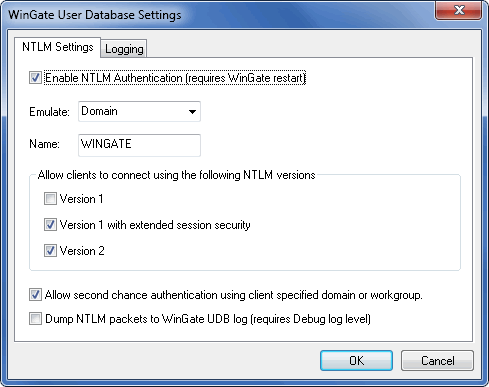
The WinGate user database now supports NTLM authentication for users. This is useful when you want to create users specific to WinGate, but have them use the more secure NTLM mechanism for authentication.

A primary use for NTLM support, is adding users to the WinGate user database that should be allowed access to the Internet. When these users connect to the Internet through WinGate using a Windows machine on the network, their Windows user credentials can be supplied as part of NTLM authentication if it is required by WinGate. If these credentials match an allowed user that has been configured in the WinGate user database, then authentication will take place.

NTLM authentication support is turned on by default, but can be adjusted depending on your NTLM requirements.

Configuring NTLM support for the WinGate User database:

  1. Open the WinGate Management console.
  2. Navigate to Control Panel > Users and Groups.
  3. Select Settings from the Tasks menu, or alternatively right click in the Users and Groups panel and select Settings. This will open the WinGate User Database settings dialog.
  4. Check the Enable NTLM Authentication (requires WinGate restart) option.
  5. In the Allow clients to connect using the following NTLM versions section, select what versions of NTLM will be supported by WinGate when they are used by the client. By default the Version 1 with extended session security and Version 2 will be selected. This is to facilitate clients using Windows XP which use Version 1 with extended session security automatically.
  6. Click OK to save the changes and exit.

Users can now authenticate themselves (when required in WinGate by policy etc.) using a suitable NTLM supported application.

  1. no comments yet...

Download helpfile

You can use basic Full-Text Searches against the page title and body to find matching articles. Use the following search modifiers to refine your query:
  • event management (no quotes) will find all pages containing the words "event" OR "management"
  • "event management" (with quotes) will find all pages containing the phrase "event management"
  • +event -management will find all pages containing the word "event", AND NOT the word "management"